
How to install Windows 10 from a USB drive: step by step
Windows 10 is still installed with Microsoft's media creation tool: an empty USB flash drive of at least 8 GB, starting the PC from the drive, then a custom installation. Microsoft has not published free security updates since 14 October 2025: keep this version for a PC that cannot move to Windows 11, and back up your files before you start.
Windows 10 in 2026: what to know first
Microsoft states that, after 14 October 2025, Windows 10 no longer receives free software updates, technical support or security fixes. The Windows 10 download page remains available, with version 22H2, and encourages you to consider Windows 11. Reinstalling Windows 10 therefore mainly makes sense for a PC that cannot move to Windows 11 (see Windows 11 compatible PC) or that runs software not yet validated on the newer version. The full picture is in End of Windows 10 support: what to do?, and Extended Security Updates extend protection. If your PC is compatible, prefer Windows 11.
Before you start
- An empty USB drive of at least 8 GB: its contents will be deleted.
- An internet connection to download the tool, then Windows.
- A backup of your files. A clean installation erases the disk.
- Your product key (25 characters) in the delivery email. According to Microsoft, you do not need to enter it if Windows 10 was already activated on this PC (digital licence).
Step 1: create the USB drive
Download the tool
On the Download Windows 10 page, use “Download tool now” in the “Create Windows 10 Installation Media” section, then run it (administrator rights) and click “Accept”.
Choose the language and architecture
Keep the recommended options, or choose the language, edition and architecture (64-bit for most recent PCs), then “Next”.
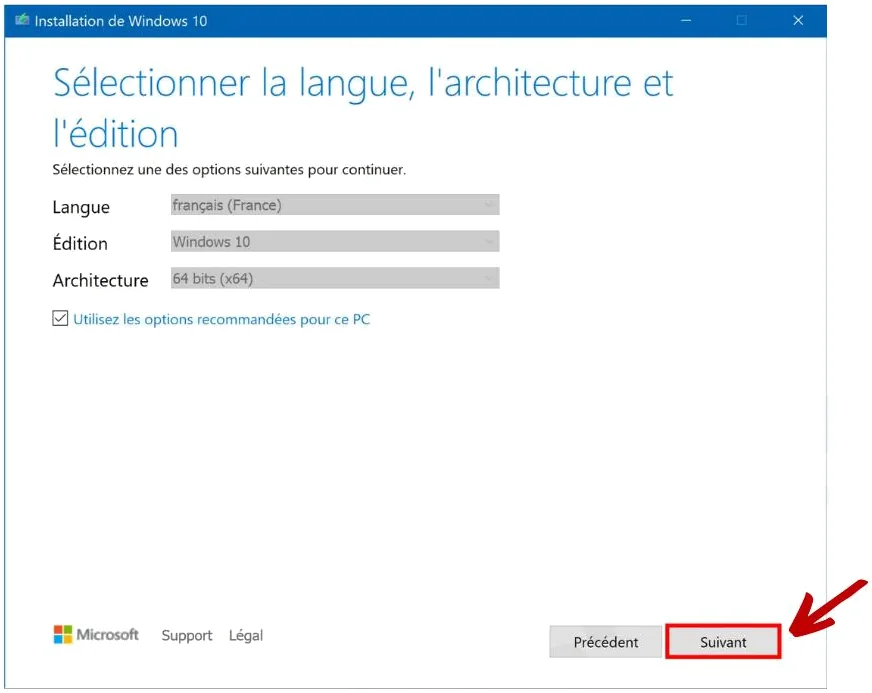
Language, edition and architecture. Choose “USB flash drive”
Select “USB flash drive” then “Next”. The “ISO file” option is for burning a DVD.
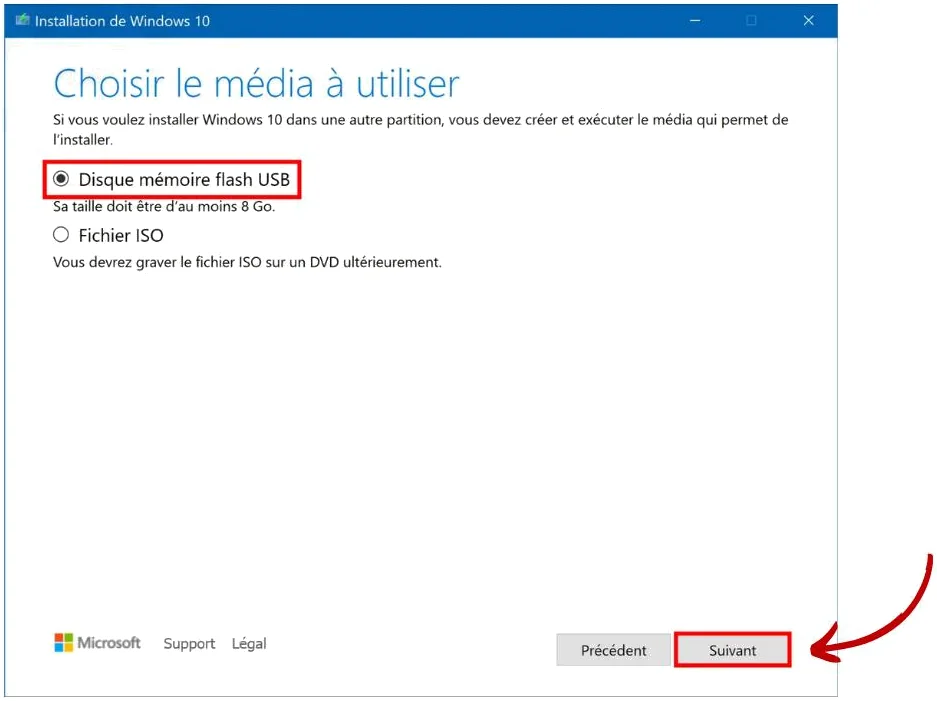
The drive must be at least 8 GB. Select your drive
In the “Removable drives” list, click your USB drive then “Next”. All its contents will be erased.
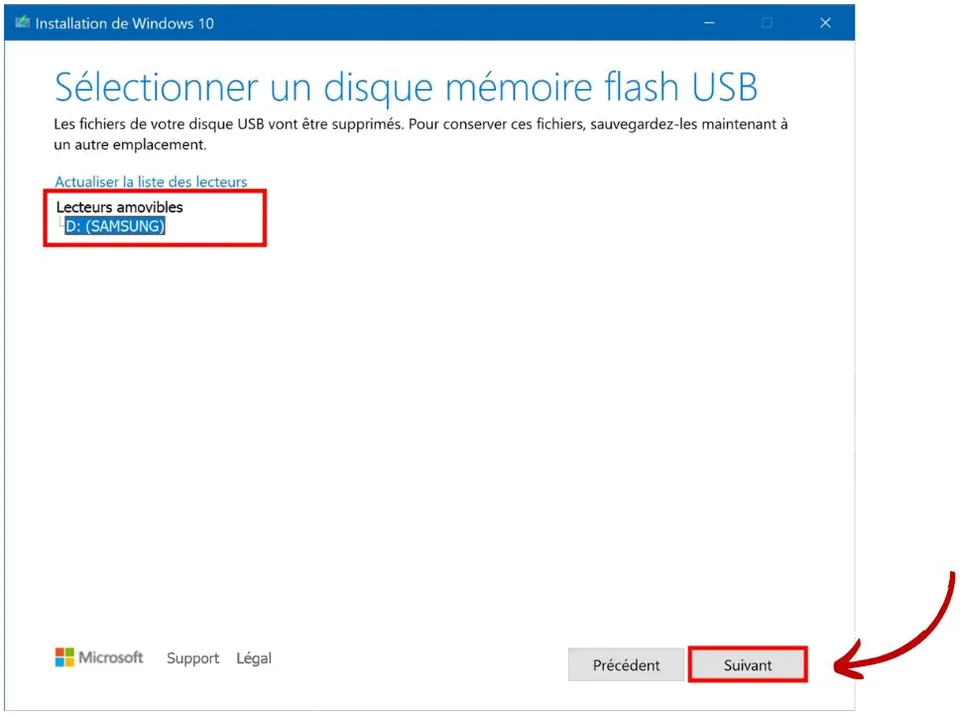
Check the name and size of the drive carefully. Wait for the “ready” message
When the tool displays “Your USB flash drive is ready”, click “Finish”.
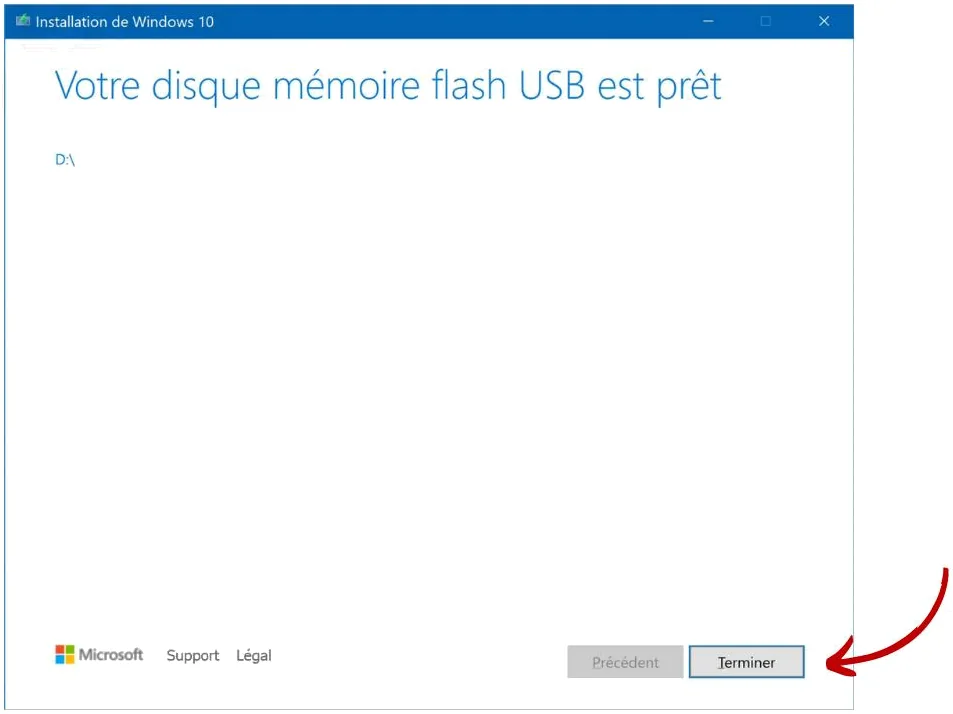
The drive can be removed.
Step 2: start the PC from the drive
Plug the drive into the PC to be installed, then restart it while opening the boot menu (F2, F12, Del or Esc keys according to Microsoft; sometimes F8 or F9), or by changing the boot order in the BIOS or UEFI. Choose the line for your USB drive. If it does not appear, temporarily disable Secure Boot. After the installation, restore the original boot order so that the “Install Windows” page does not come back.
Step 3: install Windows 10
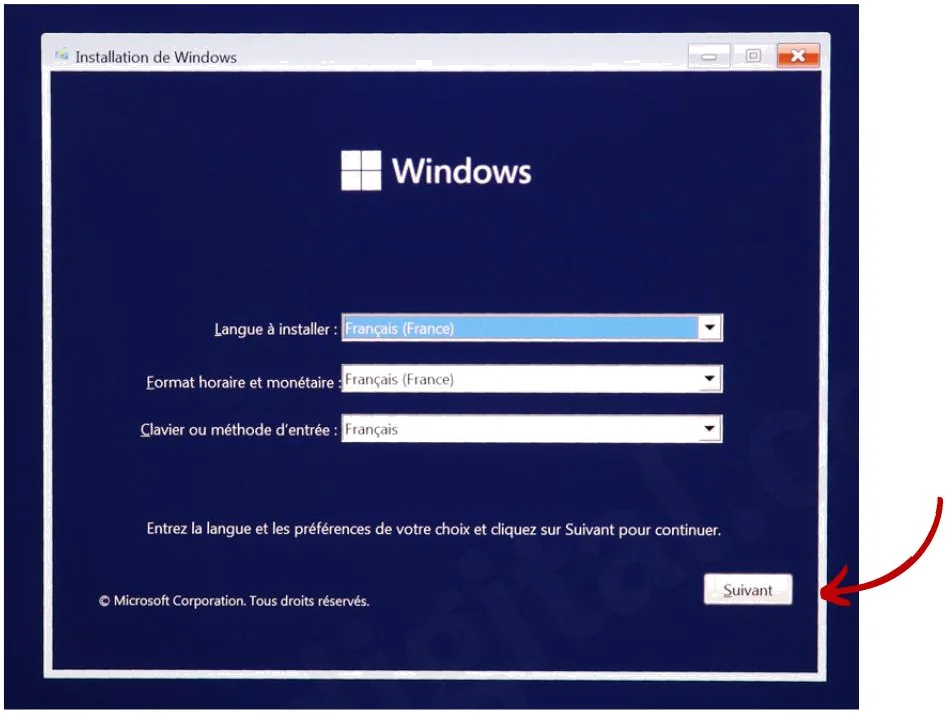
Language and keyboard
Check the language, the time format and the keyboard, then “Next” and “Install now”.
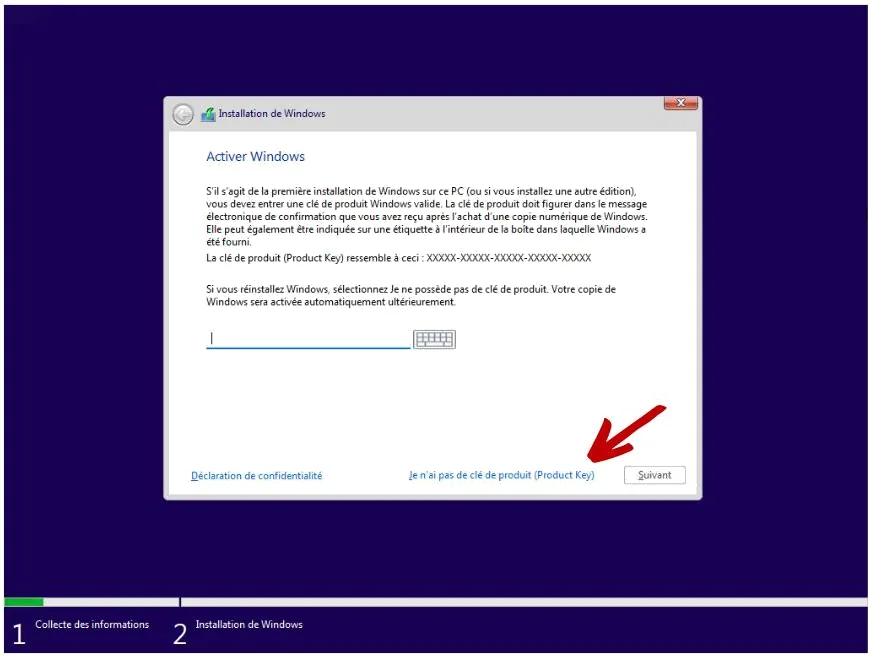
The Windows 10 setup program. “I don't have a product key”
Click this link: you will enter the key after the installation, from Settings › Update & Security › Activation.
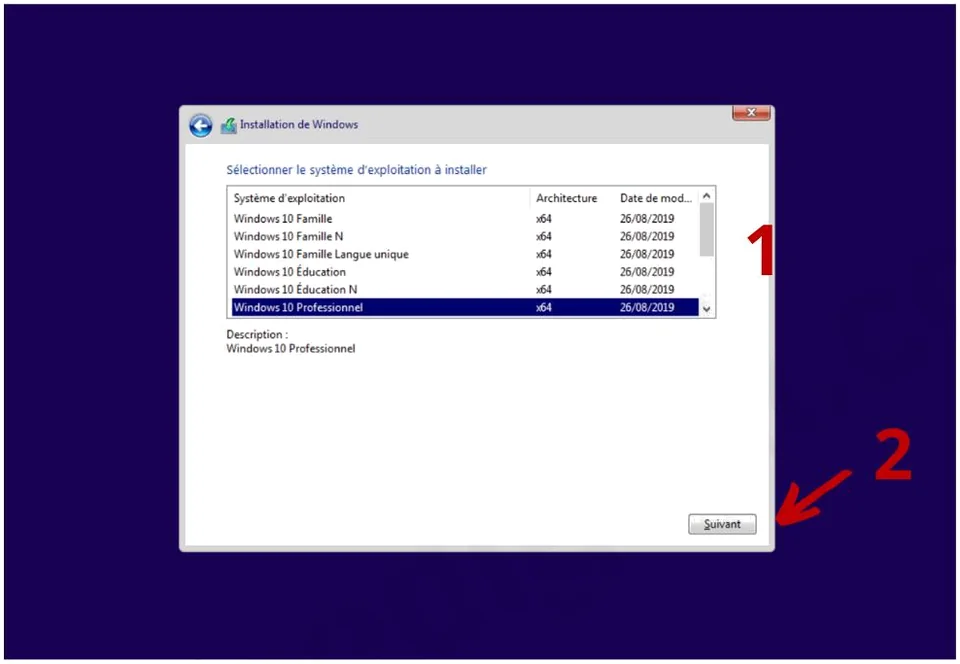
At the bottom of the window. Choose the edition
Windows 10 Pro with a Pro key, Windows 10 Home with a Home key.
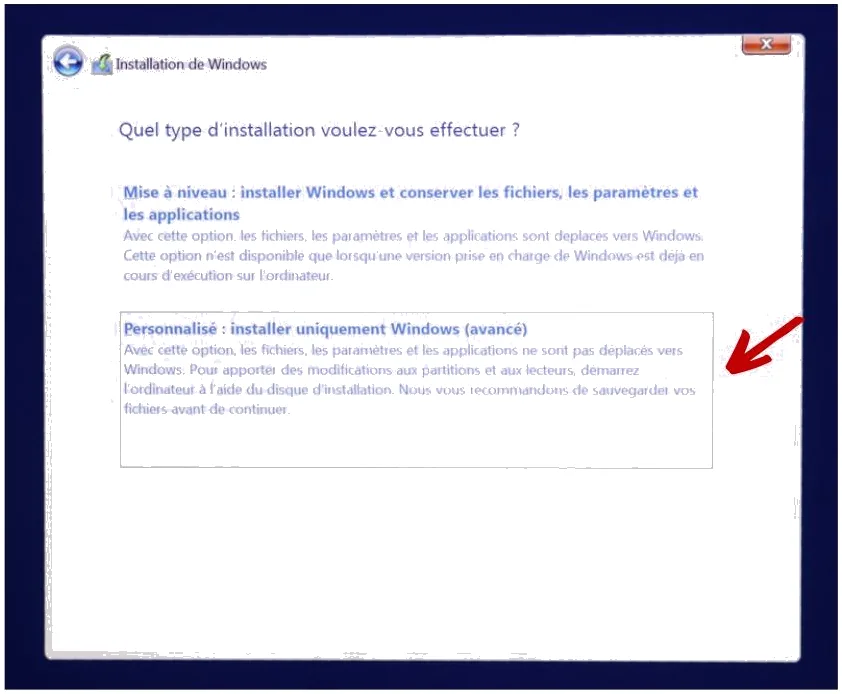
The edition must match the key. Accept the licence then choose “Custom”
Tick the box to accept the terms, then choose “Custom: Install Windows only (advanced)”.
The “Upgrade” option is only possible from within Windows. Choose the disk
Deleting a partition permanently erases its contents: check your backup and the disk you have chosen. For a clean installation, delete the partitions of the system disk then select the unallocated space and click “Next”. With an SSD and a hard disk, install Windows on the SSD.
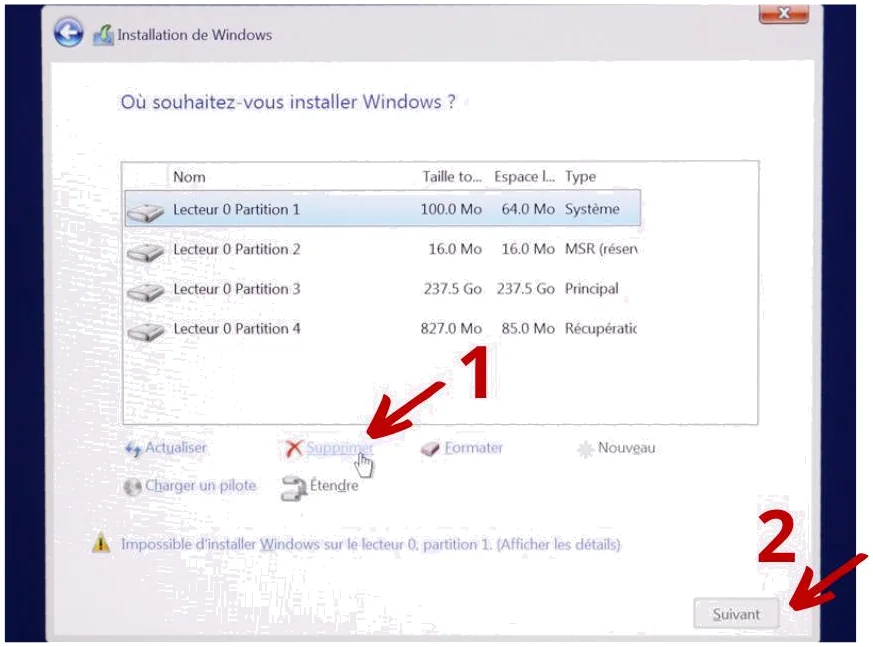
Only delete the disk you want to erase. Be patient
Windows copies its files and the PC restarts several times. Do not switch it off.
Step 4: the first settings
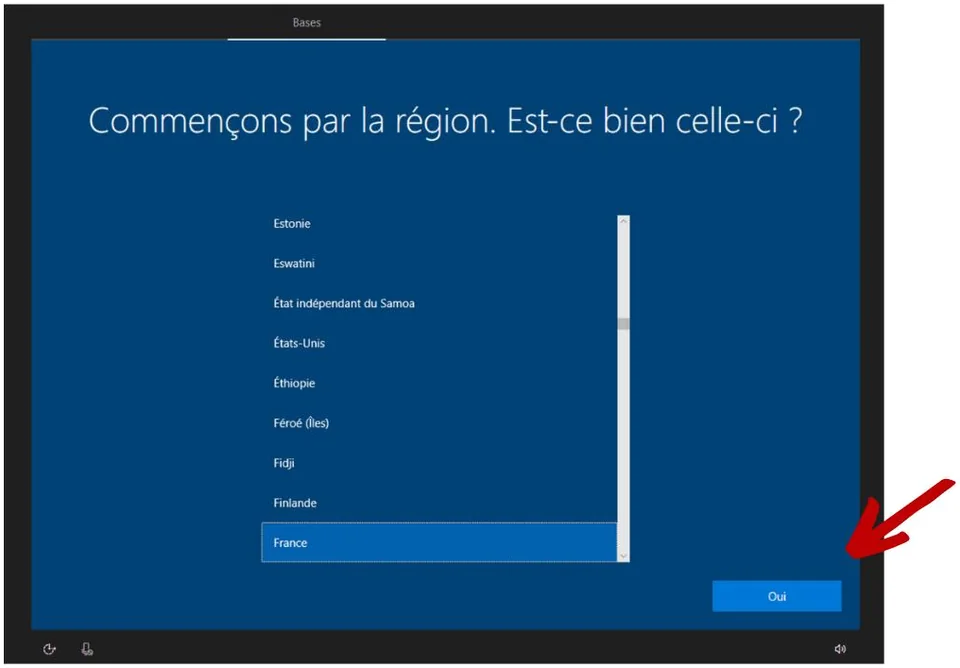
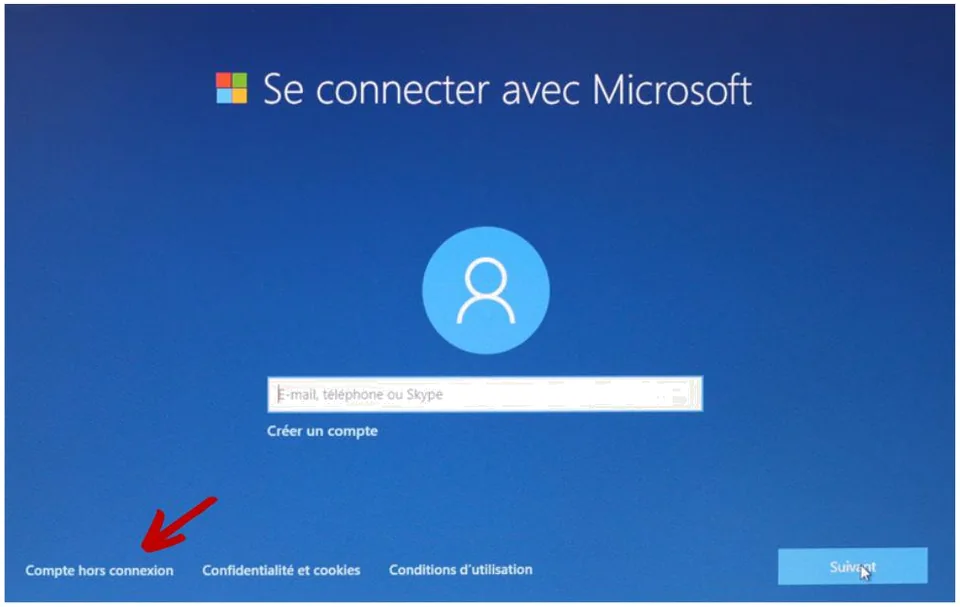
Windows asks for the country, the keyboard, the network, then the account. If you prefer a local account, the network connection screen sometimes offers “I don't have internet”: this is what we use in the workshop to create an offline account. Then read each privacy screen: location, diagnostic data, personalised advertising, which you can decline.
Step 5: activate Windows 10
Open Settings › Update & Security › Activation, then “Change product key” and enter the 25 characters received by email. If an error message appears, see Windows activation errors: codes and solutions or My key doesn't work.
Feedback from the MAO Informatique workshop
- We reinstall more than we migrate: a clean installation removes the bugs and slowdowns that have built up.
- No going back: we do not keep an old Windows in a separate partition. The only solution is to reinstall the system completely.
- What most often causes problems: a processor that is too slow, no SSD, lack of space on very small computers costing around €250.
An example: Mrs Durand
Mrs Durand needed Windows 10 on her computer. We fitted an SSD, dusted the machine, then installed Windows 10. If you want to do it yourself, follow the steps above.
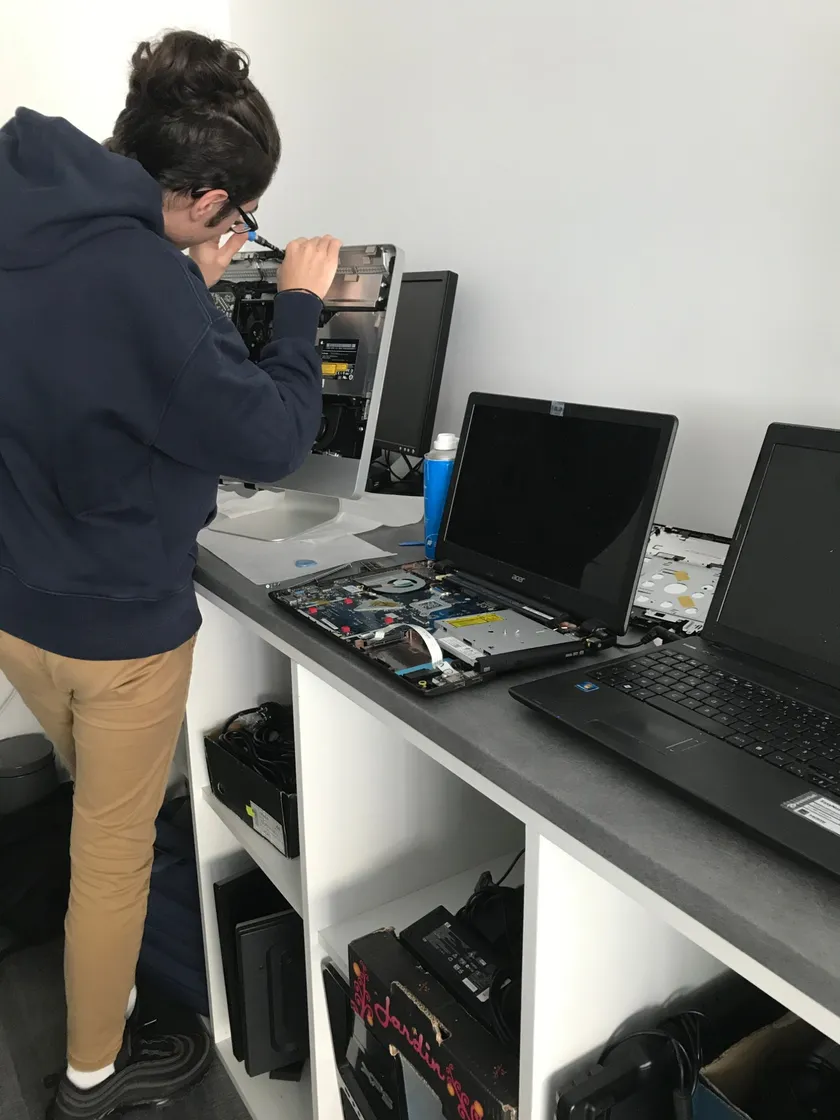
The workshop can also do it for you, at the workshop or at your home: contact us.